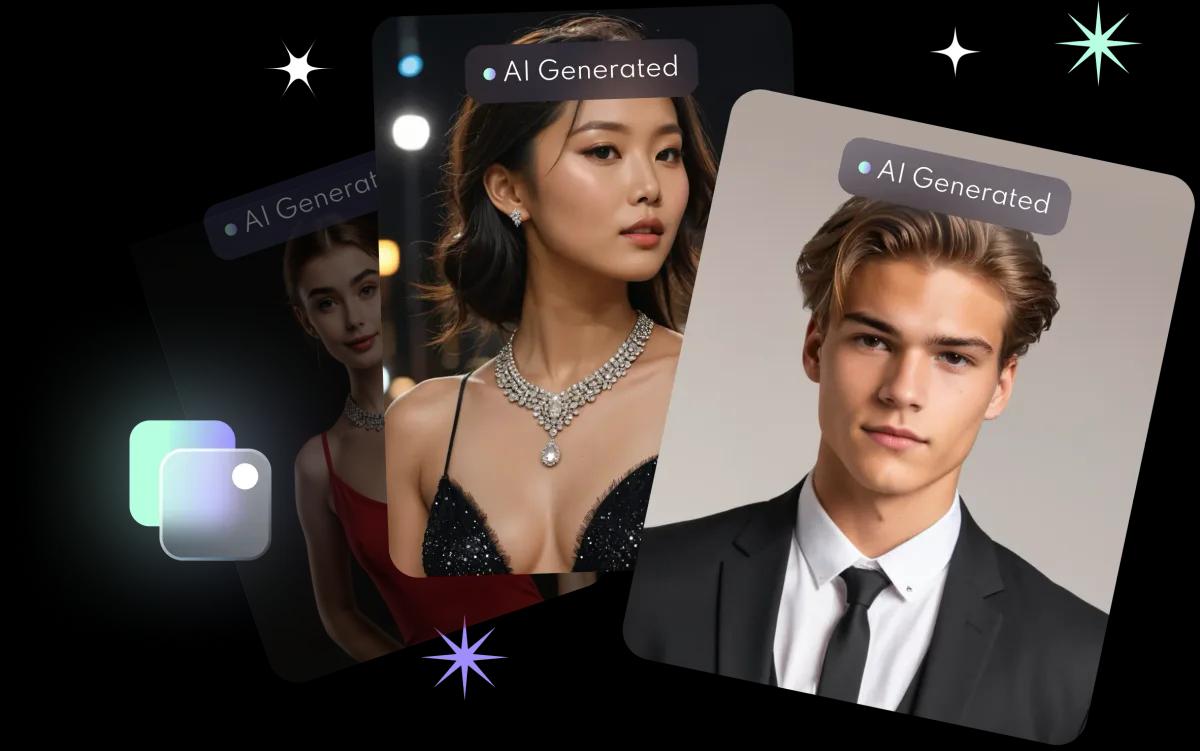
What do you need before you start?
- An iPhone with the FaceVibe app, free on the App Store.
- 8 to 10 recent selfies of just you, facing the camera, without hats or other head coverings.
- About 10 minutes while FaceVibe trains a model for you.
The selfie tips guide explains how to take photos that give the AI the best start.
How do you create the headshot, step by step?
- Upload your photos. Open AI Photos in FaceVibe and add 8 to 10 selfies.
- Let the AI learn your face. It takes about 10 minutes to train a model just for you.
- Choose a professional style. Browse the styles and pick professional headshots or work outfits for LinkedIn.
- Pick and download. Swipe through the results, choose your favourite and save it with one tap.
See the AI headshot generator page for what the feature includes.
How do you pick the right shot for LinkedIn?
A LinkedIn photo works best when people would recognise you in a video call or at a meeting. When you compare results, choose the one that:
- Looks like you today, with your real hairstyle and features.
- Has a simple background, so your face is the focus at small sizes.
- Shows your face clearly, filling most of the frame once cropped to a circle.
- Fits your field, from a sharp suit to a relaxed creative look.
These are general profile-photo tips; LinkedIn's own help pages have its current photo guidance.
Can you make headshots for someone else?
Yes. FaceVibe lets you create up to 3 AI profiles, so you can make headshots for a partner, a family member or a friend as well. To start again with different photos of yourself, delete your AI profile under Settings and create a new one; the app FAQ has the steps.
What happens to your selfies?
Photos you upload for AI generation are kept for a limited time and then deleted, and FaceVibe does not use your images to train its AI unless you explicitly opt in. Generated images are kept on the server for up to 7 days, so save your favourites to your phone. The privacy guide sums up the details.